
Sold By: DigitalAdPlanet
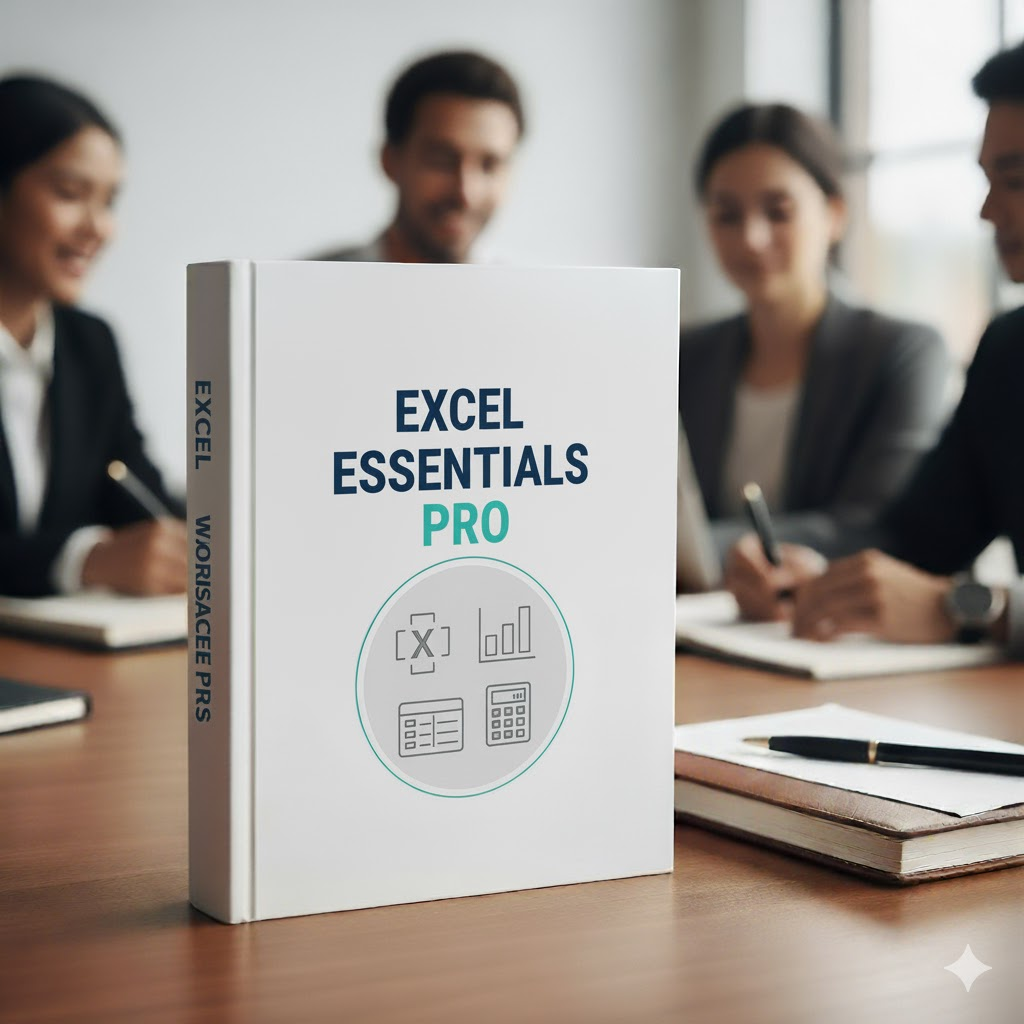
Participants will gain a fundamental understanding of the Excel environment and the ability to complete tasks independently. They will know and demonstrate the correct application of the principal features of Excel. Participants will create and edit a workbook with multiple sheets, and use a graphic element to represent data visually. Workbook example include professional looking budgets, financial statements, team performance charts, sales invoices, and data-entry logs.
Everything you need to teach a one-day workshop for Excel Essentials:
Training Manuals
PowerPoint Slides
Instructor's Guide
Quick Reference Job Aids
Icebreakers, Activities,
& Exercise Files
Pre-Assignments,
Pre-/Post-Assessments
Promotional Advertorials
Lesson Plans with Flip Chart Notes
Excel Essentials Course Outline:
Module One: Create and Manage Worksheets and Workbooks
Create Worksheets and Workbooks
Create a workbook
Import data from a delimited text file
Add a worksheet to an existing workbook
Copy and move a worksheet
Navigate in Worksheets and Workbooks
Search for data within a workbook
Navigate to a named cell, range, or workbook element
Insert and remove hyperlinks
Format Worksheets and Workbooks
Change worksheet tab color
Rename a worksheet
Change worksheet order
Modify page setup
Insert and delete columns or rows
Change Workbook themes
Adjust row height and column width
Insert headers and footers
Customize Options and Views for Worksheets and Workbooks
Hide or unhide worksheets
Hide or unhide columns and rows
Customize the Quick Access toolbar
Change workbook views
Change window views
Modify document properties
Change magnification by using zoom tools
Display formulas
Configure Worksheets and Workbooks for Distribution
Set a print area
Save workbooks in alternative file formats
Print all or part of a workbook
Set print scaling
Display repeating row and column titles on multiple worksheets
Inspect a workbook for hidden properties or personal information
Inspect a workbook for accessibility issues
Inspect a workbook for compatibility issues
Module Two: Manage Data Cells and Ranges
Insert data in cells and ranges
Replace data
Cut, copy, or paste data
Paste data by using special paste options
fill cells by using Auto Fill
Insert and delete cells
Format cells and ranges
Merge cells
Modify cell alignment and indentation
Format cells by using Format Painter
Wrap text within cells
Apply number formats
Apply cell formats, apply cell styles
Summarize and organize data
Insert sparklines
Outline data
Insert subtotals
Apply conditional formatting
Module Three: Create tables
Create and manage tables
Create an Excel table from a cell range
Convert a table to a cell range
Add or remove table rows and columns
Manage table styles and options
Apply styles to tables
Configure table style options
Insert total rows
Filter and sort a table
Filter records
Sort data by multiple columns
Change sort order
Remove duplicate records
Module Four: Perform operations with formulas and functions
Summarize data by using functions
Insert references
Perform calculations by using the SUM function
Perform calculations by using MIN and MAX functions
Perform calculations by using the COUNT function
Perform calculations by using the AVERAGE function
Perform conditional operations by using functions
Perform logical operations by using the IF function
Perform logical operations by using the SUMIF function
Perform logical operations by using the AVERAGEIF function
Perform statistical operations by using the COUNTIF function
Format and modify text by using functions
Format text by using RIGHT, LEFT, and MID functions
Format text by using UPPER, LOWER, and PROPER functions
Format text by using the CONCATENATE function
Module Five: Create charts and objects
Create charts
Create a new chart
Add additional data series
Switch between rows and columns in source data
Analyze data by using Quick Analysis
Format graphic elements
Resize charts
Add and modify chart elements
Apply chart layouts and styles
Move charts to a chart sheet
Insert and format objects
Insert text boxes and shapes
Insert images
Modify object properties
Add alternative text to objects for accessibility
SKU: SF-2443-IOU3
Categories: Ebooks, Manual & Reports, Research & Feasibility Reports & White Paper
Participants will gain a fundamental understanding of the Excel environment and the ability to complete tasks independently. They will know and demonstrate the correct application of the principal features of Excel. Participants will create and edit a workbook with multiple sheets, and use a graphic element to represent data visually. Workbook example include professional looking budgets, financial statements, team performance charts, sales invoices, and data-entry logs.
Everything you need to teach a one-day workshop for Excel Essentials:
Training Manuals
PowerPoint Slides
Instructor's Guide
Quick Reference Job Aids
Icebreakers, Activities,
& Exercise Files
Pre-Assignments,
Pre-/Post-Assessments
Promotional Advertorials
Lesson Plans with Flip Chart Notes
Excel Essentials Course Outline:
Module One: Create and Manage Worksheets and Workbooks
Create Worksheets and Workbooks
Create a workbook
Import data from a delimited text file
Add a worksheet to an existing workbook
Copy and move a worksheet
Navigate in Worksheets and Workbooks
Search for data within a workbook
Navigate to a named cell, range, or workbook element
Insert and remove hyperlinks
Format Worksheets and Workbooks
Change worksheet tab color
Rename a worksheet
Change worksheet order
Modify page setup
Insert and delete columns or rows
Change Workbook themes
Adjust row height and column width
Insert headers and footers
Customize Options and Views for Worksheets and Workbooks
Hide or unhide worksheets
Hide or unhide columns and rows
Customize the Quick Access toolbar
Change workbook views
Change window views
Modify document properties
Change magnification by using zoom tools
Display formulas
Configure Worksheets and Workbooks for Distribution
Set a print area
Save workbooks in alternative file formats
Print all or part of a workbook
Set print scaling
Display repeating row and column titles on multiple worksheets
Inspect a workbook for hidden properties or personal information
Inspect a workbook for accessibility issues
Inspect a workbook for compatibility issues
Module Two: Manage Data Cells and Ranges
Insert data in cells and ranges
Replace data
Cut, copy, or paste data
Paste data by using special paste options
fill cells by using Auto Fill
Insert and delete cells
Format cells and ranges
Merge cells
Modify cell alignment and indentation
Format cells by using Format Painter
Wrap text within cells
Apply number formats
Apply cell formats, apply cell styles
Summarize and organize data
Insert sparklines
Outline data
Insert subtotals
Apply conditional formatting
Module Three: Create tables
Create and manage tables
Create an Excel table from a cell range
Convert a table to a cell range
Add or remove table rows and columns
Manage table styles and options
Apply styles to tables
Configure table style options
Insert total rows
Filter and sort a table
Filter records
Sort data by multiple columns
Change sort order
Remove duplicate records
Module Four: Perform operations with formulas and functions
Summarize data by using functions
Insert references
Perform calculations by using the SUM function
Perform calculations by using MIN and MAX functions
Perform calculations by using the COUNT function
Perform calculations by using the AVERAGE function
Perform conditional operations by using functions
Perform logical operations by using the IF function
Perform logical operations by using the SUMIF function
Perform logical operations by using the AVERAGEIF function
Perform statistical operations by using the COUNTIF function
Format and modify text by using functions
Format text by using RIGHT, LEFT, and MID functions
Format text by using UPPER, LOWER, and PROPER functions
Format text by using the CONCATENATE function
Module Five: Create charts and objects
Create charts
Create a new chart
Add additional data series
Switch between rows and columns in source data
Analyze data by using Quick Analysis
Format graphic elements
Resize charts
Add and modify chart elements
Apply chart layouts and styles
Move charts to a chart sheet
Insert and format objects
Insert text boxes and shapes
Insert images
Modify object properties
Add alternative text to objects for accessibility
Your email address will not be published. Required fields are marked *
Please login to write review!
Looks like there are no reviews yet.
₦22,000.00 ₦190,000.00
₦35,000.00 ₦140,000.00
₦350,000.00
₦350,000.00
₦350,000.00